Prerequisites
Before completing corrective actions, confirm the following items are true:
- You have logged into the SQFI Assessment Database - (not sqfi.com).
- Your site's audit is either in:
- "Technical Reviewer Selection" status & the Audit Modules are marked 'Closed'; or
- "Corrective Actions Pending" status
- The account you're using has "Primary" Access.
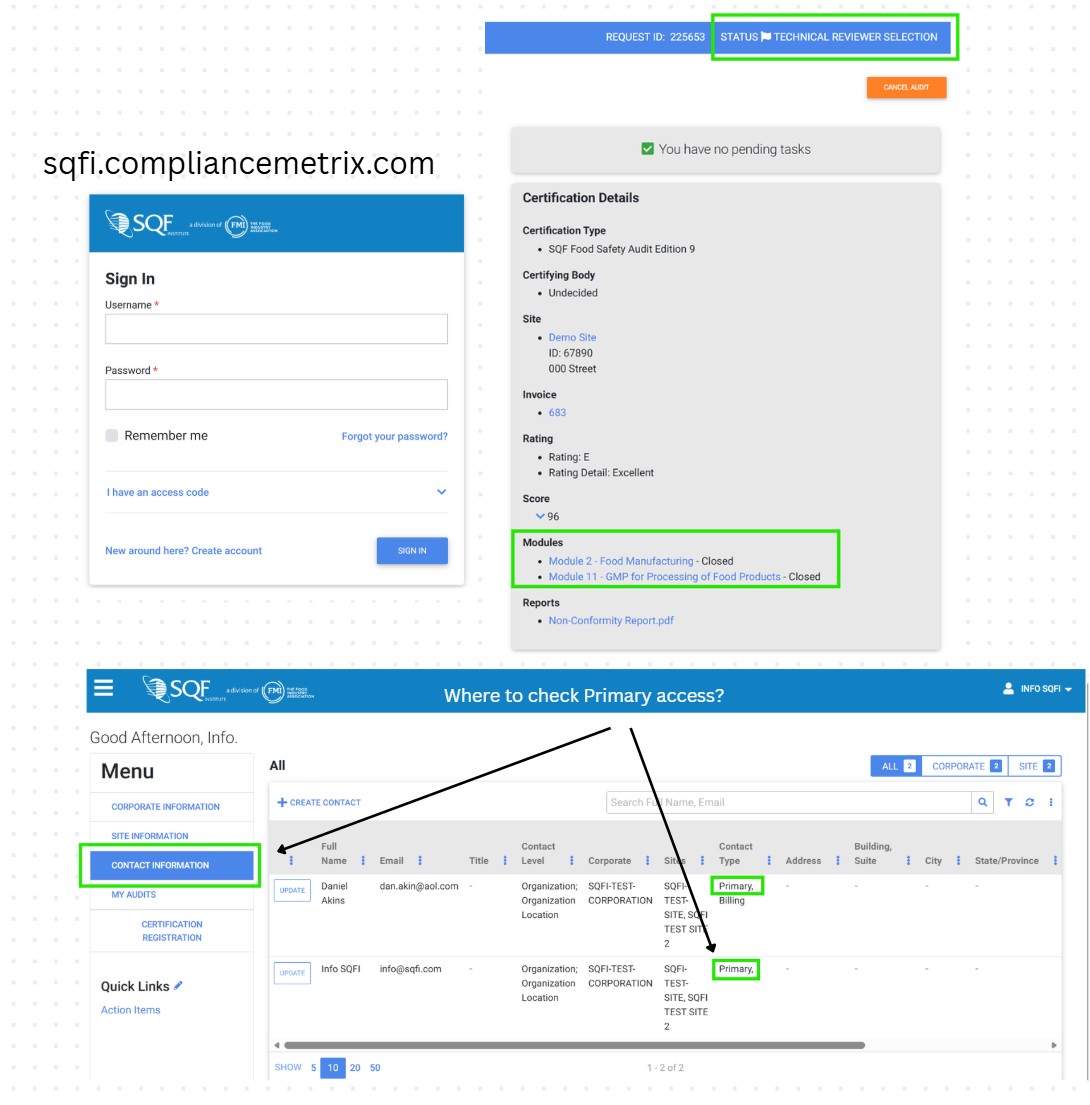
DO NOT OPEN YOUR AUDIT: Instead open "Action Items".
Steps
A) Assign the Corrective Actions (CAPS) to yourself
1. Click "Action Items", this should appear on the left side of your screen under Quick Links.
2. You should see a list of your non-conformances waiting to be assigned.
3. Click "Manage" on the right side of each line that starts with "CAPS". (Picture 1)
4. Click the blue button that reads "Reassign to me". (Picture 2)
5. Click "Yes" on the dialogue box that pops up.
6. Repeat Steps 3-5 for each line, until all lines that start with "CAPS" are assigned to you.
.png?sfvrsn=5fe22dd5_9 "Manage and reassign (1)")
B) Open your Audit
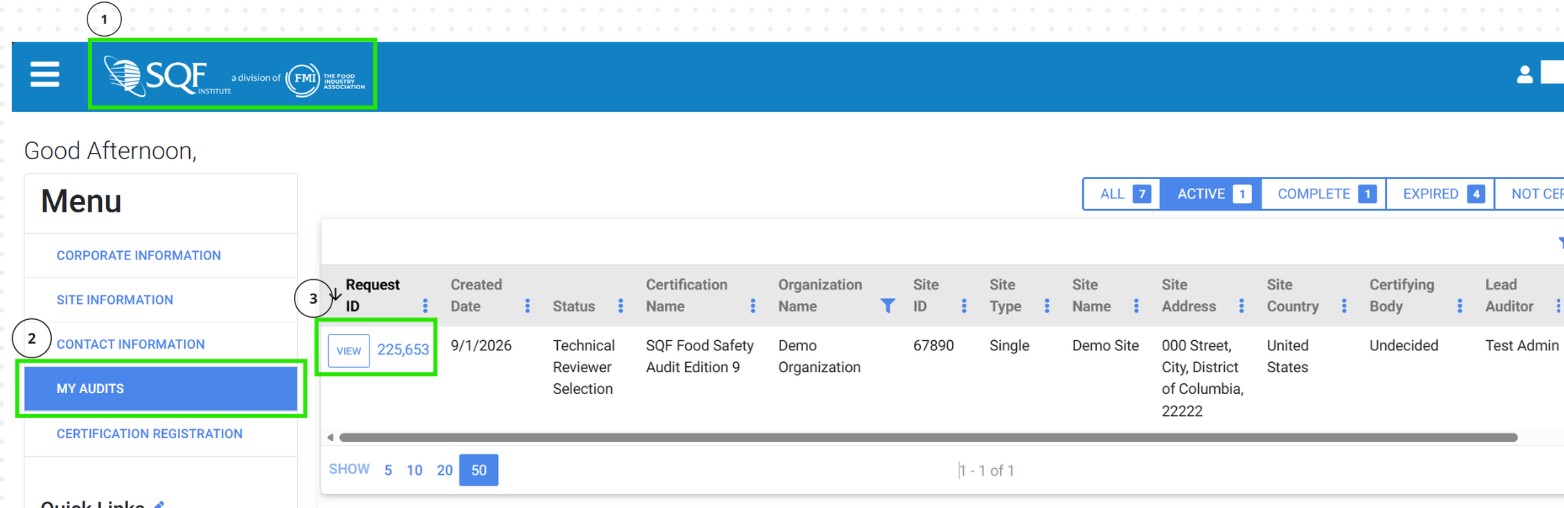
1. Navigate back to your Home page.
-You can do this by clicking the "SQF Logo" at the top left corner of your page.
2. Ensure you have the "My Audits" tab selected.
3. Click "View" to open your audit.
C) Address Non-Conformances/ Enter Corrective Actions
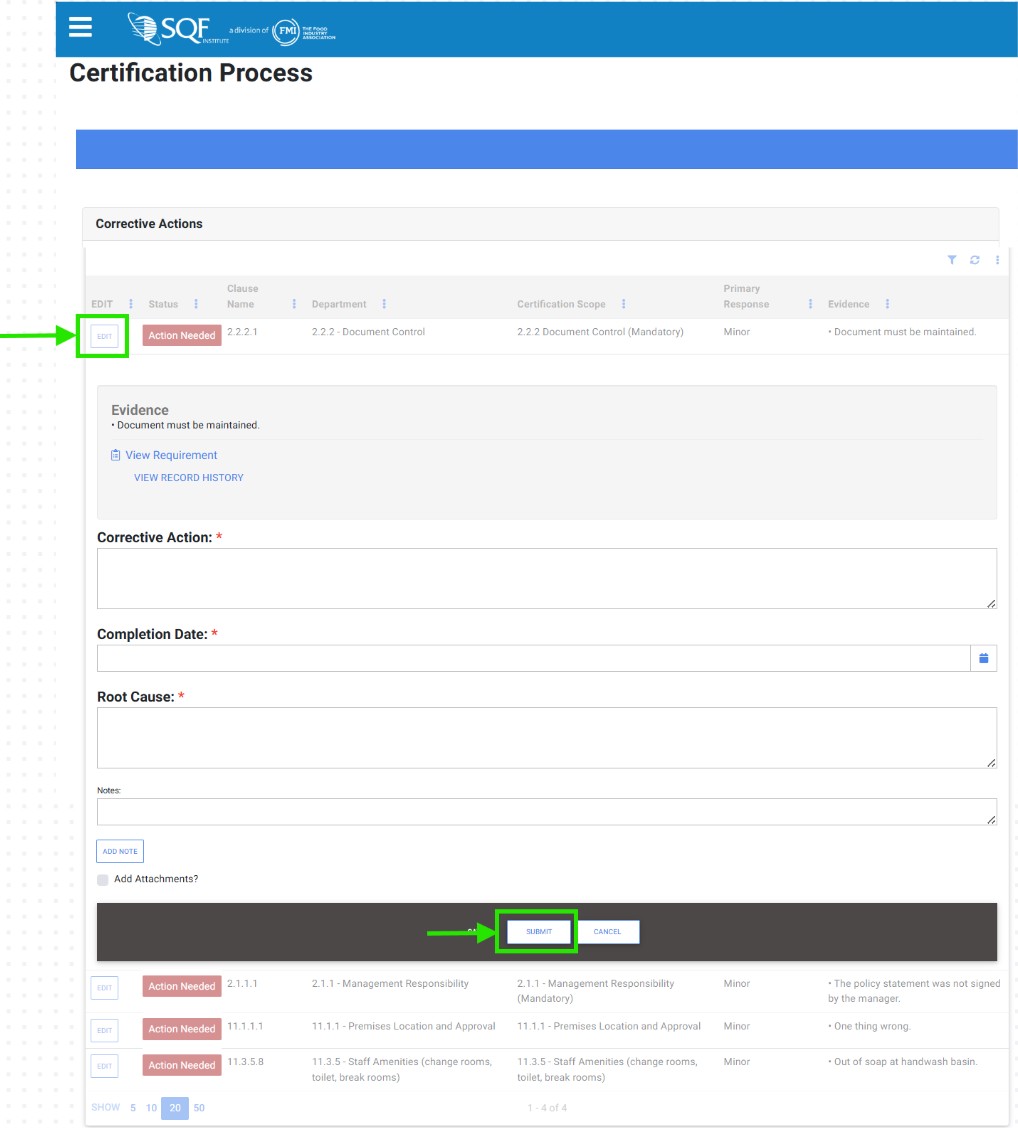
1. Click "Edit" next to each Non-Conformance.
2. Enter the Corrective Action information into the appropriate text fields.
3. Click "Submit".
4. Repeat steps 1-3 for each Non-Conformance until you have completed all Corrective Actions.
Result
The Audit should now be in "Corrective actions in Review" status. You have completed your part of the audit. Your auditor will let you know shortly if any edits are required, otherwise you will receive an email once the audit is marked "Finished".
If you would like a status update, please reach out to your auditor.
Troubleshooting:
- Text fields appear grayed out:
- Check to make sure the account you logged in on has Primary access (Pictured at the top of this article).
- Check that all Corrective Actions are assigned to the account that you are logged in to. (Instructions under Part 'A. Assign the Corrective Actions (CAPS) to yourself' in the article above.)
- Check if the audit is past "In-Progress" status.
- Check that the Audit Modules are marked "Closed" (Pictured at the top of this article).
- Audit is "In-Progress"/ Modules are Open:
- You will not be able to enter Corrective Actions until your auditor finished entering the Non-Conformances and moved the audit past "In-Progress" and marked the Modules closed. Please reach out to your auditor if you would like a status update.
- Not a Primary Contact:
- Multiple users can have Primary account access. To be granted Primary access please reach out to our Customer Support email: info@sqfi.com.
- Add Attachments:
- Confirm the file type and size meet system requirements (PDF, JPG, DOCX, under size limits).
- Click the small gray box in front of "Add Attachments?" Located just above the Submit button to the left.
- OR under a different view, look for the sentence "Include Any Attachments for this Corrective Action?" and click to toggle the button on the very right.
- Duplicate Corrective Actions:
- From the Action Items page you may see multiple lines to assign with the same Module number listed. Each Module has multiple clauses, so you can have many Non-Conformances listed under each module. These are not duplicates.
- Inside your audit, there is a duplicate of the same clause (ie. 2.1.1.1 is appearing twice.) This may happen when your auditor syncs the database with the offline app. In this case notify your auditor to request the duplicate be removed.
- Completion Date Error:
- You are receiving this error because the system is trying to compare the date you are entering to a date that has not been entered yet. Please reach out to your auditor and request they complete in the "Post Audit Information".
- Missing Corrective Actions:
- Most likely your audit has two different Modules (ie. Module 2 and Module 11), you may be stuck viewing only the Module 2 Non-Conformances. To view ALL Non-Conformances on one page please follow the steps under Part 'B. Open your Audit' in the article above.
- Submit Button:
- The "Submit" button should appear as a white button in the middle of the page. at the bottom in the dark gray border. A blue button may appear next to the white button that says "SUBMIT AND NEXT ACTION NEEDED, you can use this to submit that Corrective Action and proceed to the next one.
FAQs
Who reviews my corrective actions?
Your Certification Body reviews all corrective actions and determines if they are acceptable.
How much time do I have to complete corrective actions?
Timeframes are set by SQFI requirements and your CB, typically within 30 days of the audit.
Can I revise a corrective action after it has been submitted?
Yes, if your Certification Body requests revisions, the finding will be returned for updates.
Do I need to submit corrective actions if no non-conformances were found?
No. Corrective actions are only required if non-conformances are issued.


